Free Figma plugin · UX Hero
Claude to Figma.Describe a screen, get real layers.
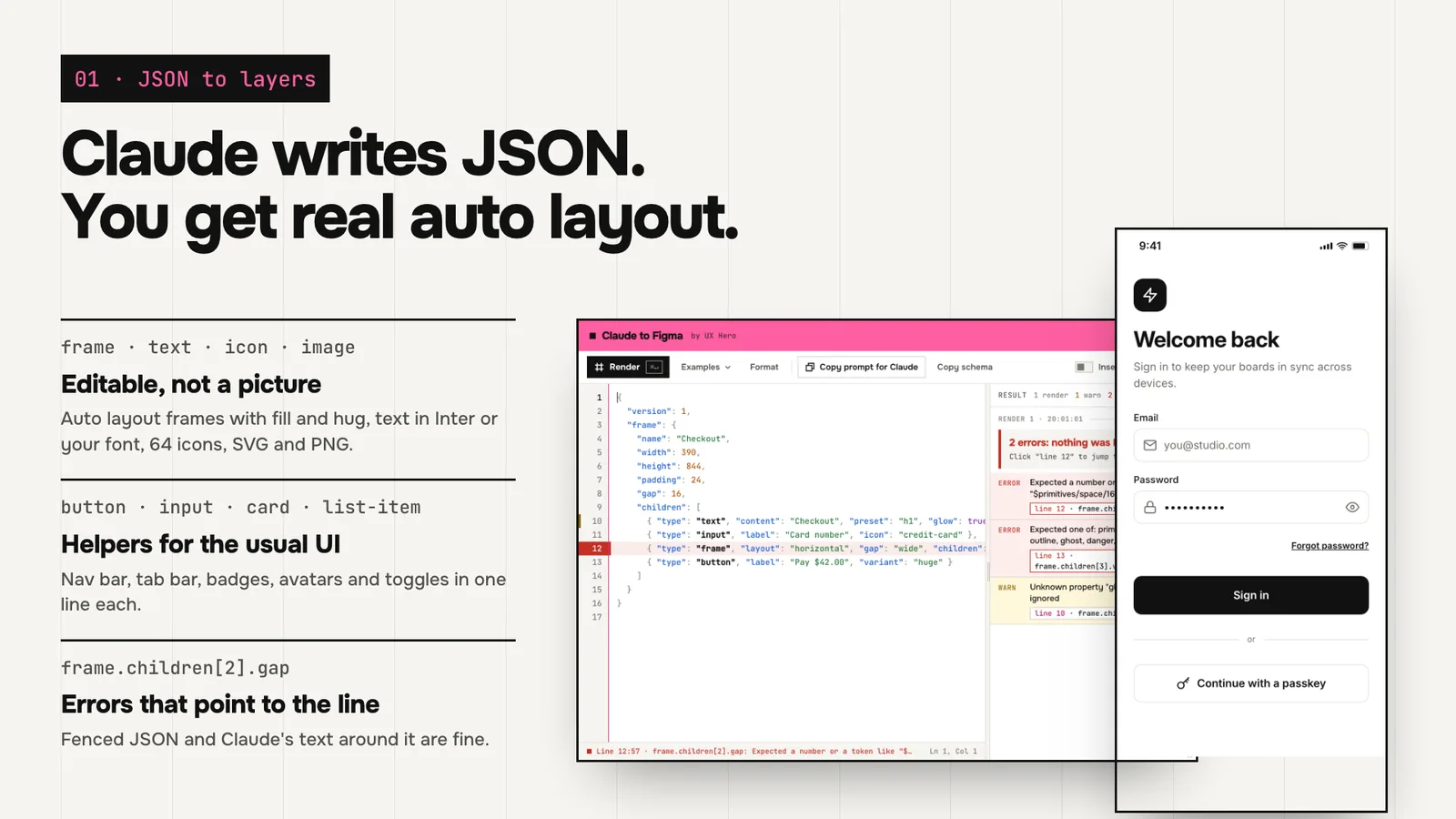
Claude writes the screen as JSON, the plugin builds auto layout frames with your tokens and text styles. Not a picture: you keep designing as usual.
Live on Figma Community: one click and it is in your account. Works in the browser and in the Figma desktop app, on the free Starter plan too.
Setup · 1 minute
Three steps.
01
Open in Figma
The plugin page on Figma Community → Open in… and pick your file.
figma.com/community → UX Hero: Claude to Figma → Open in02
Run it in a file
Any file, browser or desktop. From then on the plugin is one right-click away.
Right-click → Plugins → UX Hero: Claude to Figma03
Paste JSON, Render
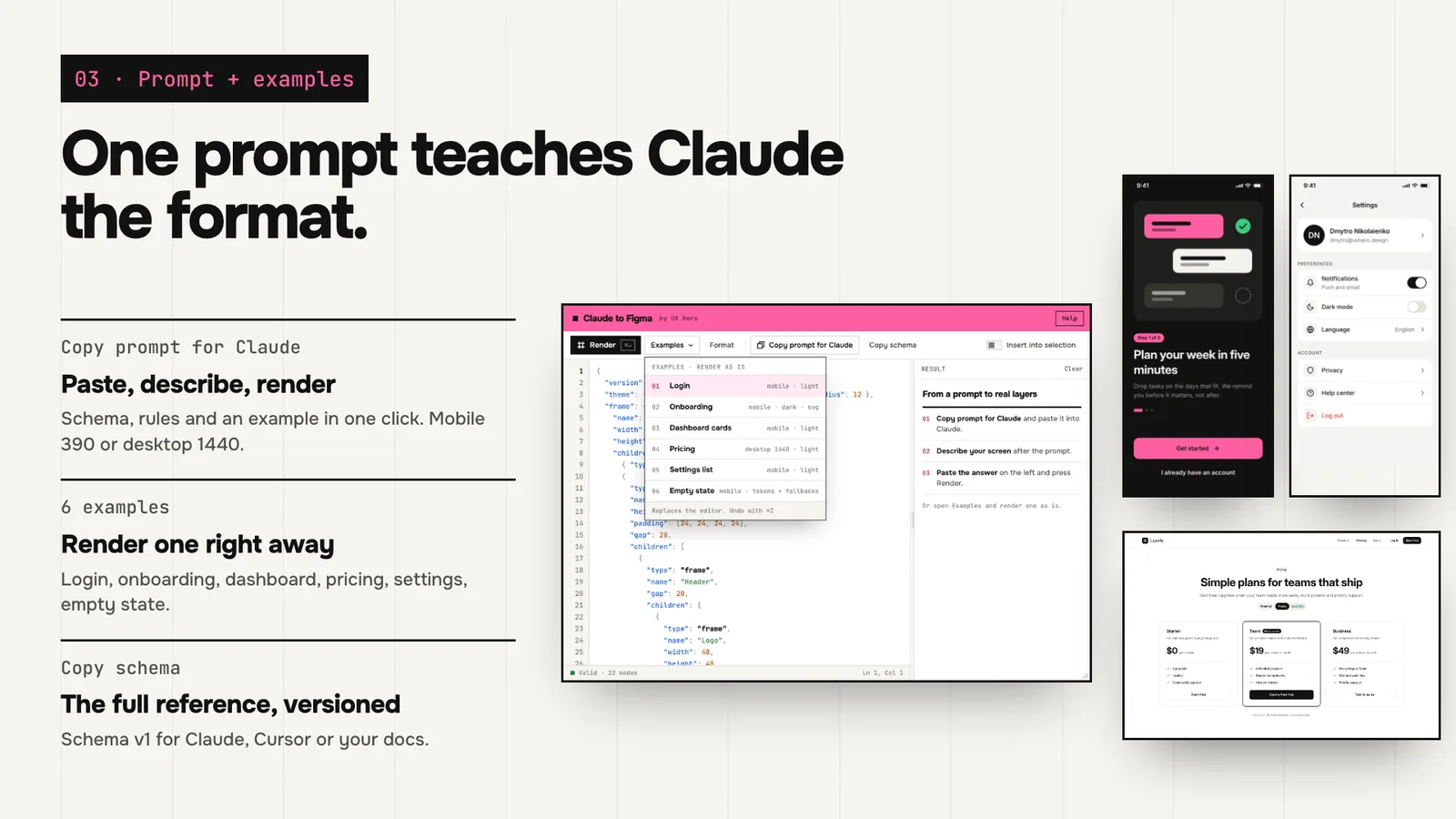
«Copy prompt for Claude» → describe your screen → paste Claude's answer into the plugin.
Paste JSON → Render
What it does
Layers, tokens, iterations.
Guide · what is what
Every button in the plugin.
There are many buttons, but three are enough to start: Copy prompt for Claude, Render and Replace selection. The rest is for edits and for working with your own design system.
Your first screen in 3 steps
01
Copy prompt for Claude
A button in the top bar. It copies a prompt that teaches Claude the format: the schema, the rules and an example. Paste it into Claude and describe your screen right below it: what it is for, mobile or desktop, light or dark.
02
Paste the answer
Copy Claude's whole answer and paste it into the plugin's editor. Text and code fences around the JSON are fine: the plugin finds the JSON itself.
03
Render
The Render button or ⌘ Enter. A frame with real auto layout layers lands on the canvas. Don't like it? ⌘Z and the canvas is back as it was.
Top bar
| Button | What it does |
|---|---|
| Render ⌘ Enter | Builds the JSON in the editor as Figma layers. One Render is one Undo step. |
| Examples | Six ready screens: Login, Onboarding, Dashboard cards, Pricing, Settings list, Empty state. Puts the JSON in the editor, then you press Render. Handy to see the format. |
| Format ⇧⌘F | Indents the JSON and strips Claude's text around it. Optional: Render finds the JSON in the answer anyway. |
| Copy prompt for Claude narrow window: Prompt | Copies the prompt that teaches Claude the format: schema, rules, an example, 390 for mobile and 1440 for desktop. Paste it into Claude and describe your screen below it. |
| Copy schema narrow window: Schema | The full reference of format v1. For Claude Code, Cursor or your own docs. |
| Kit | The design system menu, see below. |
| Settings | Two switches, see below. |
| Help | Opens this guide. |
| Clear | Above the result panel. Clears the messages after a render. |
Where the screen goes
The switch next to Render. Pick it before you press Render.
| Button | What it does |
|---|---|
| New | A new frame to the right of everything on the page. The default. |
| Into selection | Inside the selected frame. For example, a new section in a finished page. |
| Replace selection | The new version takes the place of the selected screen. The old one moves to a History section next to it, labeled and locked, ready to restore. |
| Patch | Small edits without a rebuild. Claude sends {"patch": [...]} with the ids of the layers to change, the plugin changes only those. Instances, variables and your manual edits stay. |
When a screen is selected
Select a screen the plugin built, and a bar with its name, version and buttons appears above the editor.
| Button | What it does |
|---|---|
| Copy iteration prompt | The main button for edits. Copies the rules, a format reminder and the screen's current JSON for Claude. Paste it into Claude, write what to change at the end, paste the answer back and Render with Replace selection. |
| Load JSON | Puts the JSON the screen was built from back in the editor. Edit it by hand and build again. |
| From canvas | Reads the screen as it is on the canvas now: with your manual edits and swapped components. The next Replace keeps them. |
| Read as JSON | The same for any frame, even one made by hand without the plugin. |
| Restore this version | Shows up when an old version in History is selected. Puts it back in place, the current one moves to History. |
| Clear history | Deletes the History section of this screen. Asks first. |
| «changed on canvas» | Not a button but a hint: the screen was edited by hand after its render. Replace asks first. |
Kit · your design system
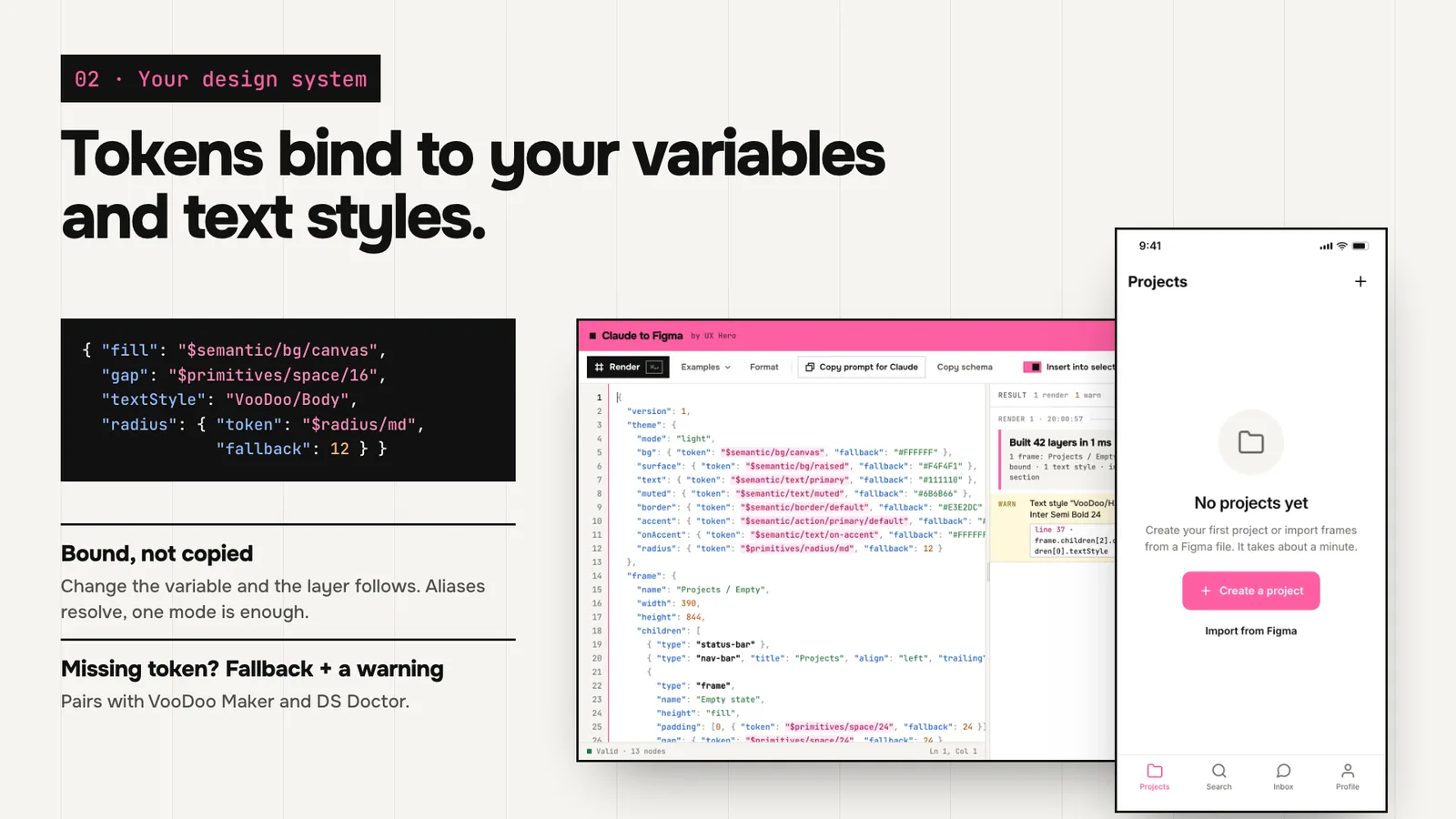
The Kit menu in the top bar. It lets Claude place real components from your library instead of drawing lookalikes.
| Button | What it does |
|---|---|
| Scan kit from selection | Select screens built by hand with your library. The plugin records its components, variants, tokens and text styles in this file. |
| Copy kit for Claude | A short text with component names, variants and tokens. Paste it into Claude with your request, and it places real library instances with colors bound to variables. |
| Edit kit · Save editor as kit | Opens the kit as JSON in the editor. Edit it and save. |
| Check selection against kit | Finds colors without variables, frames that only look like components and banned characters. Fix colors binds the colors to variables. |
Settings and shortcuts
| Button | What it does |
|---|---|
| Auto-load JSON on select | Select a screen and its JSON appears in the editor. If the editor has changes you have not rendered, it asks first. |
| Keep a History version on Patch | Before a Patch, a copy of the screen goes to History. Off by default: Undo works too. |
| ⌘ Enter · ⇧⌘F · ⌘S | Render · Format · save the editor text (it autosaves too). |
| Tab · ⇧Tab · Esc | Indent · outdent · close the help or a menu. |
Claude to Figma or Code Runner?
Claude to Figma
Draws screens.
Claude describes a screen as JSON, the plugin builds the layers: frames, text, buttons, cards. For new screens and new versions of a screen.
Code Runner
Runs code in your file.
Runs the JavaScript Claude wrote: variables from tokens, bulk edits, renaming, checks. For anything that takes too long by hand. About Code Runner
Together they close the loop: Claude to Figma builds the screen, Code Runner turns your tokens into variables and binds every color of the screen to them.
The plugin gives you a screen. The course takes it to a product.
Course · Design System + AI
Tokens from Figma, components with every state, Storybook and Claude keeping the system in order.
See the courseNew plugins and lives: UX Hero Telegram bot